FREQUENTLY ASKED QUESTIONS (FAQ)
Yes, absolutely. The Windows 11 Home key you purchase from us is a 100% genuine Microsoft retail license. It will activate directly with Microsoft’s official servers, providing you with a fully legal, activated copy of Windows 11 Home. You will receive all the same security updates and features as you would with a key bought from a physical store.
Windows 11 Home is designed for most everyday users, offering a complete and beautiful experience with features like the new Start menu, Snap Layouts, and Microsoft Defender antivirus. Windows 11 Pro includes advanced features needed for business environments, such as BitLocker encryption, Remote Desktop hosting, and Hyper-V for virtual machines. For standard home, gaming, and student use, Windows 11 Home is the perfect and most cost-effective choice.
Your key is delivered instantly and digitally. Immediately after your payment is confirmed, you will receive an email containing your unique 25-character product key. You will also get a direct download link for the official Microsoft Windows 11 installation media. This process is fully automated and typically takes 1-5 minutes.
Yes, this is one of the most common uses for our keys. A Windows 11 Home retail key is perfect for a new build. You will need to create a bootable USB drive using the “Microsoft Media Creation Tool” (we provide a link). During the installation process, you will be prompted to enter your product key to activate Windows.
This depends on the license type. The Windows 11 Home Retail key from MyLegitKeys.com is transferable. You can deactivate it on your old machine and use it to activate a new installation on a different PC (or the same PC after a major hardware change). In contrast, a cheaper OEM key is permanently locked to the first motherboard it’s activated on. Our retail key offers greater flexibility for the future.
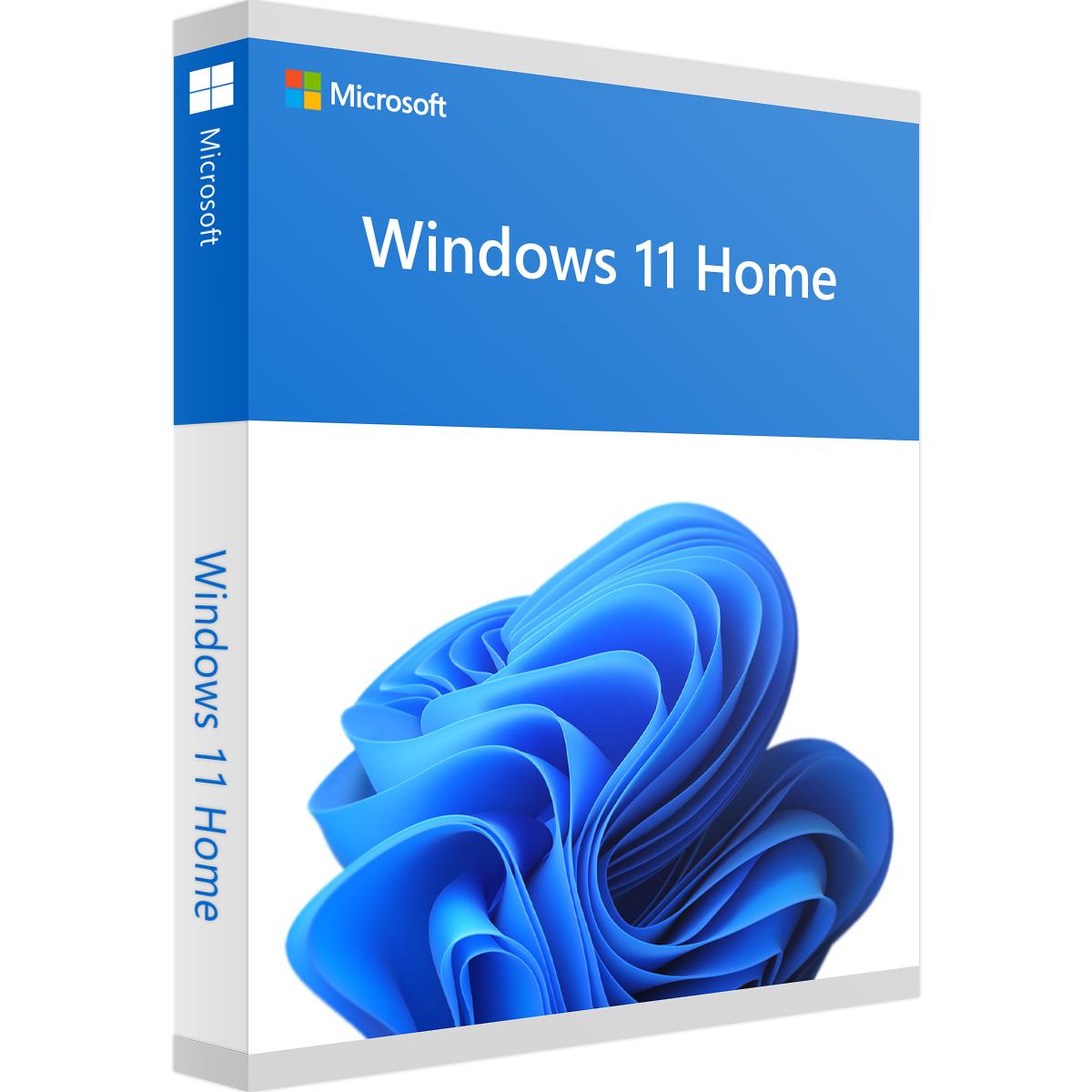
Windows 11 Home key

Features
The following are the notable features of Windows 11 Home:
Microsoft Store
Download Windows apps for your Windows tablet or computer. Browse thousands of free and paid apps by category, read user reviews, and compare ratings.
Microsoft Teams
Get Teams integrated directly into the Windows 11 Taskbar, making it easier to access. You’ll be able to access Teams from Windows, Mac, Android, or iOS.
Xbox Game Pass better gaming
Windows 11 Home now has certain features found in Xbox consoles, like Auto HDR and DirectStorage, to improve gaming on your Windows PC.
Remote (Virtual) desktop support (Client only)
Windows 11 lets you set up virtual desktops to allow you to toggle between multiple desktops for personal, work, school, or gaming use. Microsoft Remote Desktop Connection lets you remotely connect to another PC from anywhere. It’s disabled by default in Windows 11.
Windows Hello
Sign in to your Microsoft account with Windows Hello. Windows 11 allows you to sign in to your device on the lock screen and sign in to your account on the web using Windows Hello.
Device encryption
Windows 11 Home, like Windows 10 Home has Device Encryption. Windows device encryption is a security feature in Microsoft Windows that helps protect your data by encrypting the system drive. If device encryption is enabled, only authorized individuals can access your device and data.
Firewall and network protection
Included in Windows 11 Home, Firewall & network protection in Windows Security lets you view the status of Microsoft Defender Firewall and see what networks your device is connected to.
Feel protected and stay safe.
Internet protection
Security is a big part of Windows 11 Home, but so is delivering productivity and a good experience with all the security features turned on. This is why Internet Protection is included in the system to protect you from Internet-related attacks.
Parental controls/protection
Privacy starts with putting you in control. You should have the tools and information to make informed choices. You can manage your data saved to the cloud.
Secure Boot
Secure Boot is a security standard developed by members of the PC industry to help make sure that a device boots using only software that is trusted by the Original Equipment Manufacturer (OEM). When the PC starts, the firmware checks the signature of each piece of boot software, including UEFI firmware drivers (also known as Option ROMs), EFI applications, and the operating system. If the signatures are valid, the PC boots and the firmware gives control to the operating system.
Windows Defender Antivirus
In Windows 11 Home, there’s Windows Security App and Microsoft Defender Antivirus program to keep you safe — Protect your data and devices.
Snap Groups and Snap Layouts
These are collections of the apps you’re using at once that sit in the Taskbar and can come up or be minimized at the same time for easier task switching. Isn’t Windows 11 Home Great?
They also let you plug and unplug from a monitor more easily without losing where your open windows are located.
Other features
- Start Menu: Get quick access to frequently used programs and documents. The menu is fully customizable. You can resize it to manage the layout of interactive dynamic Live Tiles tiles.
Hybrid Pc support: Windows 11 automatically detects when a device is transferred to another mode of operation and independently optimizes the display to operate in the appropriate mode. - A new graphic theme. After the Fluent Design which aimed to make Windows more fluid and animated, Microsoft introduces a new clear graphic theme, or Windows Light (see screenshot below).
- Device Guard: Device Guard provides protection against new and unknown versions of malware and constant threats of increased complexity.
- Cortana set back. The voice assistant is decoupled from the Start menu and the search engine of the OS and now integrates directly into the Windows taskbar. “This will allow each experience to benefit from independent innovations to better serve their audience and their use cases,” argues Microsoft.
- Improved email client: Quickly connect and share files with the people and groups that matter most. Simplify your life with tools that help you take control of your email and schedule.
System Requirements
The minimum system requirements of Windows 11 Home include:
Note: If you are unsure whether your PC meets these requirements, you can check with your PC Original Equipment Manufacturer (OEM) or, if your device is already running Windows 10, you can use the PC Health Check app to assess compatibility.
- Processor: 1GHz (gigahertz ) or faster with 2 or more cores on a compatible 64-bit processor or System on a Chip (SoC)
- Memory (RAM): 4GB (gigabyte )
- Storage: 64 GB or larger storage device
- System firmware: UEFI, Secure Boot capable
- TPM: Trusted Platform Module (TPM) version 2.0
- Graphics card: Compatible with DirectX 12 or later with WDDM 2.0 driver
- Display: High definition (720p) display that is greater than 9” diagonally, 8 bits per color channel
- Internet connection and Microsoft accounts: Windows 11 Home edition requires internet connectivity and a Microsoft account to complete device setup on first use.
**For all Windows 11 editions, internet access is required to perform updates and to download and take advantage of some features. A Microsoft account is required for some features.
FREQUENTLY ASKED QUESTIONS (FAQs)
1. What is the 25-digit product key?
The 25-digit product key is a unique alphanumeric code (e.g., XXXXX-XXXXX-XXXXX-XXXXX-XXXXX) that you receive after a purchase at Mylegitkeys.com. It will be displayed on your screen, sent to your email, and available in your account’s “Downloads” section. Important: Never share this full key with anyone.
2. Is it safe to buy cheap Windows 11 keys at mylegitkeys?
Yes, based on the website’s claims and common practices in this market, Mylegitkeys.com positions itself as a safe source. They state their keys are legitimate, sourced from surplus OEM or retail stock, and come with lifetime validity and 24/7 support.
3. How to find Windows 11 product key without Command Prompt?
If you’ve purchased from Mylegitkeys, you don’t need to “find” it on your PC. Simply:
-
Check your purchase confirmation email.
-
Log in to your Mylegitkeys.com account and go to “My Account” > “Downloads.”
Your key will be listed there for easy copy-paste during activation.
4. How to activate the product key?
The process is straightforward:
-
Go to Settings > Update & Security > Activation on your Windows 11 PC.
-
Click “Change product key.”
-
Enter the 25-character key you received from Mylegitkeys.
-
Follow the on-screen instructions. Activation is usually instant. If online activation fails, use the automated phone system it prompts you for.
5. How much is the Windows 11 Home license?
On Mylegitkeys.com, the price is highly discounted compared to Microsoft’s MSRP. As of the information on Mylegitkeys, Windows 11 Home is listed for a promotional price (e.g., $15.99 – $24.99, though prices can change). This is significantly less than the standard retail price of approximately $139.99.
6. Is Windows 11 permanently activated?
Yes. According to Mylegitkeys.com, their Windows 11 Home product keys provide “Lifetime Activation.” Once successfully activated on your device, the license is permanently tied to your motherboard and should remain activated even after future reinstalls.
7. What is the price of a Windows 11 license key?
This depends on the source:
-
Microsoft Store (Retail): ~$139.99 for Windows 11 Home.
-
Mylegitkeys.com (Discounted Retail/OEM): Approximately $15.99 – $24.99 for the same Windows 11 Home edition, as per their current product page promotion. Always check the site for the most up-to-date pricing and offers.


Hunter ***** –
Great purchase, Activated
Thompson *********** –
I Brought it from mylegitkeys, Installed the first time, and works like a charm!! Thank you again!!
SYSCI SYSTEMS ******* –
Thank you john the key works fine